Optimizing the Originality Report
On this page, you will discover all the necessary resources to begin using Turnitin.
Turnitin is an essential tool that rigorously scans your work against an extensive content database to check for plagiarism. Its results are not only comprehensive but also highly dependable.
Sign up for an INSTRUCTOR ACCOUNT (for faculty members, REPS, or Staff)
Plagiarism/ Originality Check Service
UPLB constituents are encouraged to take advantage of the Turnitin Plagiarism/Originality Check Service. This service is beneficial in preventing plagiarism, maintaining academic integrity, and upholding the high standards of UP’s academic community.
OPTION 1
Enrollment in an Instructor’s Class
To enroll in a class, please enter the class ID number and enrollment key provided by your instructor. Take note that the enrollment key and pin code are case-sensitive. If you do not have this information yet, or the information you are entering appears to be incorrect, please contact your instructor.
OPTION 2
Draft coach
Turnitin Draft Coach allows you to use Turnitin’s tools in your Google Docs to help you work towards the final draft of your assignment before you submit it to your teacher. Read more
OPTION 3
Via Paper Submission through Email
- CEM constituents are encouraged to submit their papers for similarity checking through email: cemlibrary.uplb@up.edu.ph
- Requests from other units may be sent through the following email/ links:
| LIBRARY | Request Link | |
|---|---|---|
| Main Library | universitylibrary.uplb@up.edu.ph | |
| BIOTECH | biotechlibrary@up.edu.ph | |
| CDC | cdclibrary@devcom.edu.ph | https://bit.ly/cdcLibRequest |
| CEAT | ceatlibrary.uplb@up.edu.ph | |
| CFNR | cfnrlibrary.uplb@up.edu.ph | https://bit.ly/cfnrlibSimCheckService |
| CPAF | cpaflibrary.uplb@up.edu.ph | https://bit.ly/CPAfLibServices |
| CVM/IAS | cvmlibrary.uplb@up.edu.ph | |
| DTRI | dtri.uplb@up.edu.ph | |
| SESAM | sesamlibrary.uplb@up.edu.ph | |
| PHTRC | phtrclibrary.uplb@up.edu.ph | |
| UP RHS | uprhslibrary.uplb@up.edu.ph |
OPTION 4
Enrollment in the Library’s Created Class
Students may also enroll in the classes provided by the library. This option allows individual uploading and checking of written outputs at the client’s convenience. Once the checking has been completed, the similarity report can be viewed and downloaded from the client’s end and eventually be used as a reference in enhancing the paper.
To avail of this service, kindly send an email to: cemlibrary.uplb@up.edu.ph
There is a dedicated set of class IDs and enrolment keys for:
- Undergraduate Student (Bachelor & Associate)
- Graduate Student
- REPS & Admin Staff
This option is subject to UP System subscription limitations. We recommend other available options once the library-created class is full.
Account basics
We’ll start by helping you create your account
Setting up your account from your welcome email
If you have received a welcome email from Turnitin, this confirms that your instructor has added you to their class, allowing you to begin submitting papers to your assignments.
- To access your Turnitin account, please follow the instructions below.
- Click the Get Started button from your Turnitin welcome email.
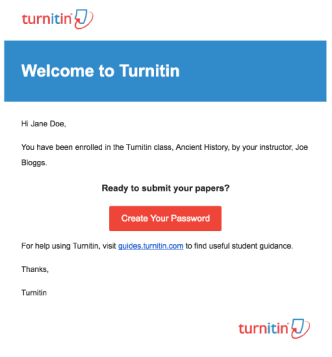
- To create your password, enter your email address (this must be the same email address to which your Turnitin welcome email was sent), along with your last name or family name.
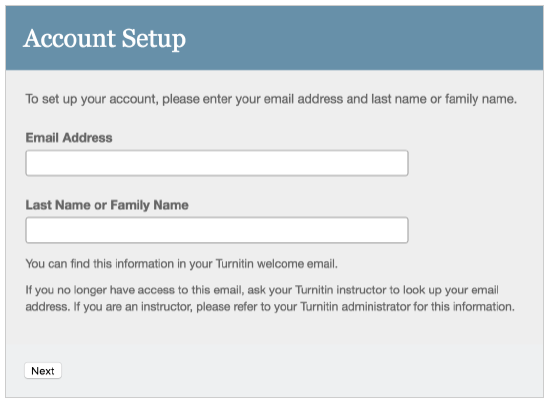
- Click Next to continue.
- Turnitin will send you an email to validate your account, with the subject: Set up your Turnitin Account. Return to your email inbox, ensuring you check your email client’s spam or junk folder for this email.
- Follow the instructions in your email to finish setting up your Turnitin account. This will direct you back to Turnitin’s account setup pages.
- Enter and confirm your new password. Your password must be between 6 and 12 characters, containing at least one letter and one number.
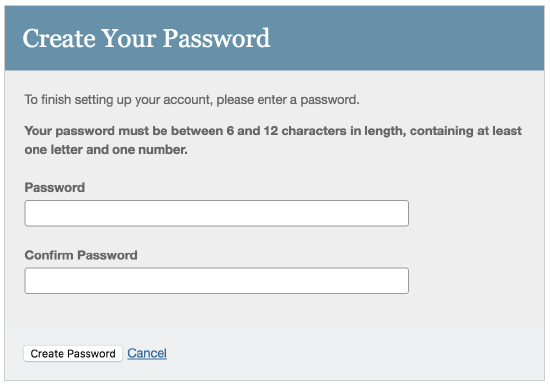
- Click the Create Password button to finish the account setup process. Alternatively, click Cancel to abort.
- Your account setup is now complete; an email will also be sent to confirm this setup. You can now log in to Turnitin to set your security question and answer and begin using the service.
- Click the Log in Now link.
- Using your email address and newly created password, enter this information in the log in fields provided.
- After login, you have the opportunity to amend your name and email address, should any of this information have been entered incorrectly.
- Select a security question, then enter an answer in the fields provided. This will be used in the event that you need to reset your password.
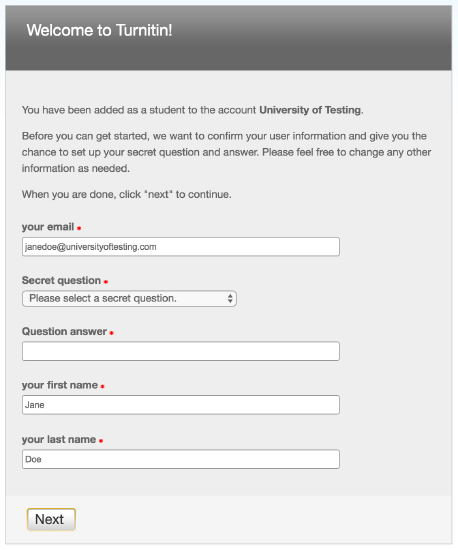
- Click Next to continue.
- Select a security question, then enter an answer in the fields provided. This will be used in the event that you need to reset your password.
- Select the I Agree — Continue button to accept Turnitin’s user agreement and enter the Turnitin service. Alternatively, select I Disagree — Logout.

Setting up your account using a class enrollment key
If you are new to Turnitin and have not been added to an account by your instructor, you must create a student profile. To create your own student account, your class ID and class enrollment key are required.
- Go to www.turnitin.com and click the Create Account link next to the Log In button.
- Click on the student link.
- The Create a New Turnitin Student Profile form must be completed to create a new student user account.
- Enter the class ID number and the case-sensitive Turnitin class enrollment key.
- Enter the user’s first name, last name, and a valid e-mail address to use as the login for Turnitin.
- Create a user password. The user password must be between six and twelve characters long and contain at least one letter and one number. Re-enter the password to confirm it.
- Select a secret question from the drop-down menu. Enter the answer to the question. Remember and keep this information. The answer is case and space sensitive.
- Review the user agreement. To continue using Turnitin, click on I agree — create a profile.
- From the completed user profile creation page, click on Log in to Turnitin.
Enrolling in a class from inside your account
- Log into Turnitin with a student user profile.
- Select the Enroll in a Class tab on the student homepage.
- Enter the class ID and enrollment key for the new class. Your instructor, TA, or another member of your learning institution must provide this information for you to access the class.
- Select Submit to enroll in the class and add it to the student user homepage.
Submitting a paper
Before getting started
- To submit a paper to an assignment on Turnitin, the user must log in and upload a file to an existing assignment.
- Assignments in Turnitin cannot accept student submissions until the assignment start date and time have passed.
- Assignments may also reject submissions after the due date and time set by the instructor.
- To check the start date and due date information, either click on the name of the assignment on the class portfolio page or view the start and due dates located under the assignment name.
- This action opens a pop-up window showing assignment preference information, including start and due dates/times, as well as other assignment information or special instructions.
After the submission has been completed, a digital receipt is displayed in your browser window. A copy is also sent via email. It is important to use a valid email address to receive this copy of the digital receipt. Save the receipt and the submission ID it contains, as this is proof of a completed submission. If the digital receipt is not shown on the screen after submission, return to the class portfolio page and view the assignment to ensure the paper submission is completed correctly. Submissions can be checked and viewed by clicking on the title of the paper under the title column to the right of the assignment name.
https://help.turnitin.com/feedback-studio/turnitin-website/student/submitting-a-paper/file-upload-submission.htm
Submit an assignment
- Log in to turnitin.com
- Once you’ve logged in, you should see your homepage listing the classes you enrolled in.
- Click the name of the class where you’d like to upload a file.
This will take you to your Class Homepage for that class. - Click the Submit button to the right of the assignment name.
This will take you to the file submission page.- On the file submission page, make sure the phrase next to the Submit: heading says “Single File Upload.” If it says “Cut and Paste Upload,” use the dropdown menu (the down arrow) next to Submit: to switch to “Single File Upload.” This will allow you to upload your file rather than using the Cut and paste file submission feature.
- Enter a title for the submission.
- Click the What can I submit? link to review the types of files and file sizes Turnitin can accept.
- Decide whether you’d like to upload a file from:
- the computer you’re using OR
- Dropbox OR
- Google Drive
- Click one of the submission buttons (computer, Dropbox, or Google Drive).
- Select the file you want to upload.
- Click the Upload button on the file submission page.
Resubmitting a paper
Some assignments may allow students the ability to overwrite their previous submissions until an assignment’s due date. This option is activated by an instructor on an assignment-by-assignment basis. If resubmissions are not enabled, your instructor must manually delete your previous submission to allow you user to submit your second file.
If resubmissions have been enabled or an instructor has deleted your first submission, resubmitting a paper is handled in an identical manner as a first-time submission.
You are allowed three resubmission attempts where the Similarity Report will generate immediately. After three attempts, you’ll have to wait 24 hours before a new Similarity Report can be generated.
Resubmission attempts are shared between you and your instructor. If they attempt to resubmit on your behalf one of your attempts will be used.
Uploading multiple files to an assignment
Only a single file may be submitted to a Turnitin assignment. Any second or subsequent submission will overwrite the original submission in this assignment. Contact your instructor if there is more than one file that must be submitted to complete the directions given by your instructor; additional assignments may be created or you may need to combine multiple documents into a single file of an acceptable file type to be uploaded into Turnitin.
The Similarity Report
Accessing your Similarity Report and Similarity Score
Turnitin compares papers against an ever expanding database of Internet pages, archived pages that might not be available any more, a subscription repository of periodicals, journals, publications, and a repository of previously submitted papers.
The similarity score is a percentage of the paper’s matches to other sources; it is not an assessment of whether the paper includes plagiarized material. The similarity report is a tool for instructors and students to easily find matches or similar text within submitted work.
- To access a Similarity Report, you must firstly access the main homepage by clicking the All Classes tab from the top of any page
- From the main homepage, select the name of the class to view the class portfolio.
- Find the assignment inbox for the assignment you submitted to. Under the Similarity column, you’ll find your similarity score. This is a numerical and visual indicator of the amount of similarity we found in your work.
Following the link will open the Turnitin Feedback Studio viewer with the similarity layer open so you can read more about any matches we’ve found.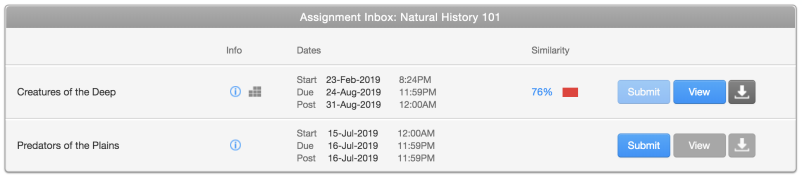
If the similarity score does not appear under the similarity column, your instructor may have prevented access to the similarity report by students. If you have been restricted from viewing the Similarity Report, we will show a paper icon with a line cut through it.
If you see a dash under the Similarity column, this means that your report is still being generated and will be updated once processing has finished.
Interpreting the Similarity Report
Though we’re known for scanning submissions for plagiarism, Turnitin actually does not check for plagiarism in your work. What we actually do is check your submissions against our database, and if there are instances where your writing is similar to, or matches against, one of our sources, we will flag this for your instructor to review. Our database includes billions of web pages: both current and archived content from the internet, a repository of works other students have submitted to Turnitin in the past, and a collection of documents, which comprises thousands of periodicals, journals, and publications.
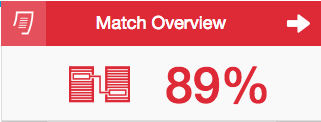
It is perfectly natural for an assignment to match against some of our database. If you’ve used quotes and referenced correctly, there will be instances where we will find a match and that is totally OK! The similarity score simply highlights any matching areas in your paper so your instructor can use this as an investigative tool to determine if the match is or is not acceptable.
Similarity Reports provide a summary of matching or highly similar text found in a submitted paper. When a Similarity Report is available for viewing, a similarity score percentage will be made available. Similarity Reports that have not yet finished generating are represented by a grayed out icon in the Similarity column. Reports that are not available may not have generated yet, or assignment settings may be delaying the generation of the report.
Overwritten or resubmitted papers may not generate a new Similarity Report for a full 24 hours. This delay is automatic and allows resubmissions to correctly generate without matching to the previous draft.
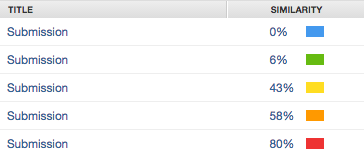
The color of the report icon indicates the similarity score of the paper based on the amount of matching or similar text that was uncovered. The percentage range is 0% to 100%. The possible similarity ranges are:
- Blue: No matching text
- Green: One word to 24% matching text
- Yellow: 25-49% matching text
- Orange: 50-74% matching text
- Red: 75-100% matching text
Viewing all sources associated with a paper
In the All Sources side panel, all of the sources that have been found are displayed and sorted by highest percentage to lowest percentage match. Clicking on any source will change the navigation bar at the top of the page, displaying how many times that this source has matched in the paper. Clicking the arrows will allow you to see where these have matched on the page. You can further refine this navigation by clicking on an individual page within a source; this will simply show you matches from that specific sub-source.
- To view All Sources, select the red graph icon from the similarity toolbar.

- You can now see a large list of all the sources for this paper. Select any of these matches to be directed to it on your paper.

- Select the X icon in the top right-hand corner of the side panel to close the full panel.

Turnitin’s AI writing detection capabilities
Identify when AI writing tools such as ChatGPT or AI paraphrasing tools (text spinners) may have been used in submitted work.
IMPORTANT NOTE: The AI writing detection indicator and report are only displayed to instructors and are not visible to students.
Turnitin Draft Coach
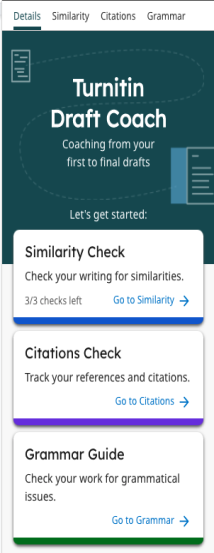
Turnitin Draft Coach provides you with the ability to use Turnitin’s tools in your Google Docs to help you work towards the final draft of your assignment before you submit it to your teacher.
UP System’s current Turnitin license comes with a Draft Coach feature as well (via Google Docs or via Microsoft Office 365) where you could run for similarity check (up to 3 attempts), citation check (unlimited), and grammar check.
Please see the links below for your reference and guidance.
https://help.turnitin.com/integrity/student/draft-coach/understanding-draft-coach.htm
How to use Turnitin Draft Coach
Use Turnitin Draft Coach to guide you from the first to the final draft. Make use of our similarity, citation and grammar checking tools while you are writing your assignment.
First, let’s get Draft Coach added to your document. Use the tabs and follow the instructions for either Google or Microsoft.
Adding Turnitin Draft Coach to your Google Doc
Once Turnitin Draft Coach has been set up by your school, you will be able to use it on any of your Google Docs to help you work towards the final draft of your assignment.
- Open your Google Doc assignment.
- Select Add-Ons, Turnitin Draft Coach, and then Turnitin Draft Coach again from the top menu bar.
_352x204.png) If the add-on does not appear, you may need to refresh your page and try again. If it does not appear after refreshing the page, it may not be set up for your institution. Contact your instructor and they can advise you.
If the add-on does not appear, you may need to refresh your page and try again. If it does not appear after refreshing the page, it may not be set up for your institution. Contact your instructor and they can advise you. - The Draft Coach panel will appear on the right-hand side.
- Draft Coach is ready to help! Let’s get started.
Adding Turnitin Draft Coach to Microsoft Word online
Once your school has set up Turnitin Draft Coach, you can apply it to any of your online Word documents to help you work towards the final draft of your assignment.
The Turnitin Draft Coach add-in may need to be installed first, but this would only need to be completed once. For following drafts, continue to the second set of instructions.
Turnitin Draft Coach cannot be added to your desktop versions of Microsoft Word.
When adding the Turnitin Draft Coach add-in for the first time:
- Open an online Microsoft Word assignment.
- Select Insert and thenAdd-ins.
- From the Office Add-ins modal, select Admin Managed and then Turnitin Draft Coach.If the add-in does not appear, you may need to refresh your page and try again. If it does not appear after refreshing the page, it may not be set up for your institution. Contact your instructor and they can advise you.
- The Turnitin Draft Coach panel will appear on the right-hand side of your document.If the panel fails to appear and an error message appears instead, ensure pop-ups are enabled in your browsers settings and try again.
- Turnitin Draft Coach is ready to help! Select Get Feedback Now to get started.
When adding Turnitin Draft Coach to following documents:
- Open an online Microsoft Word document.
- Ensure Home is selected on the menu bar, and then select Turnitin. Draft Coach is now listed as an option beneath the menu bar.

- Select Draft Coach. The Turnitin Draft Coach panel will appear on the right-hand side of your document.
- Turnitin Draft Coach is ready to help!
Watch this tutorial video for Students:
Explore
- Access & Download E-resources
- Access Special Collections
- Borrow, Renew, Request
- Catalogs
- Service hours
- Visitor access
Visit us!
MONDAY- FRIDAY
7:30 AM to 5:00 PM
 CEM Library